Estimates, invoices and payments
Money moves in one direction: estimate → invoice → payment. Expenses are tracked separately; refunds are created from a payment.
Invoices
Finances → Invoices shows all invoices. The tabs on top filter them by status: draft, sent, partially paid, paid, overdue, cancelled.
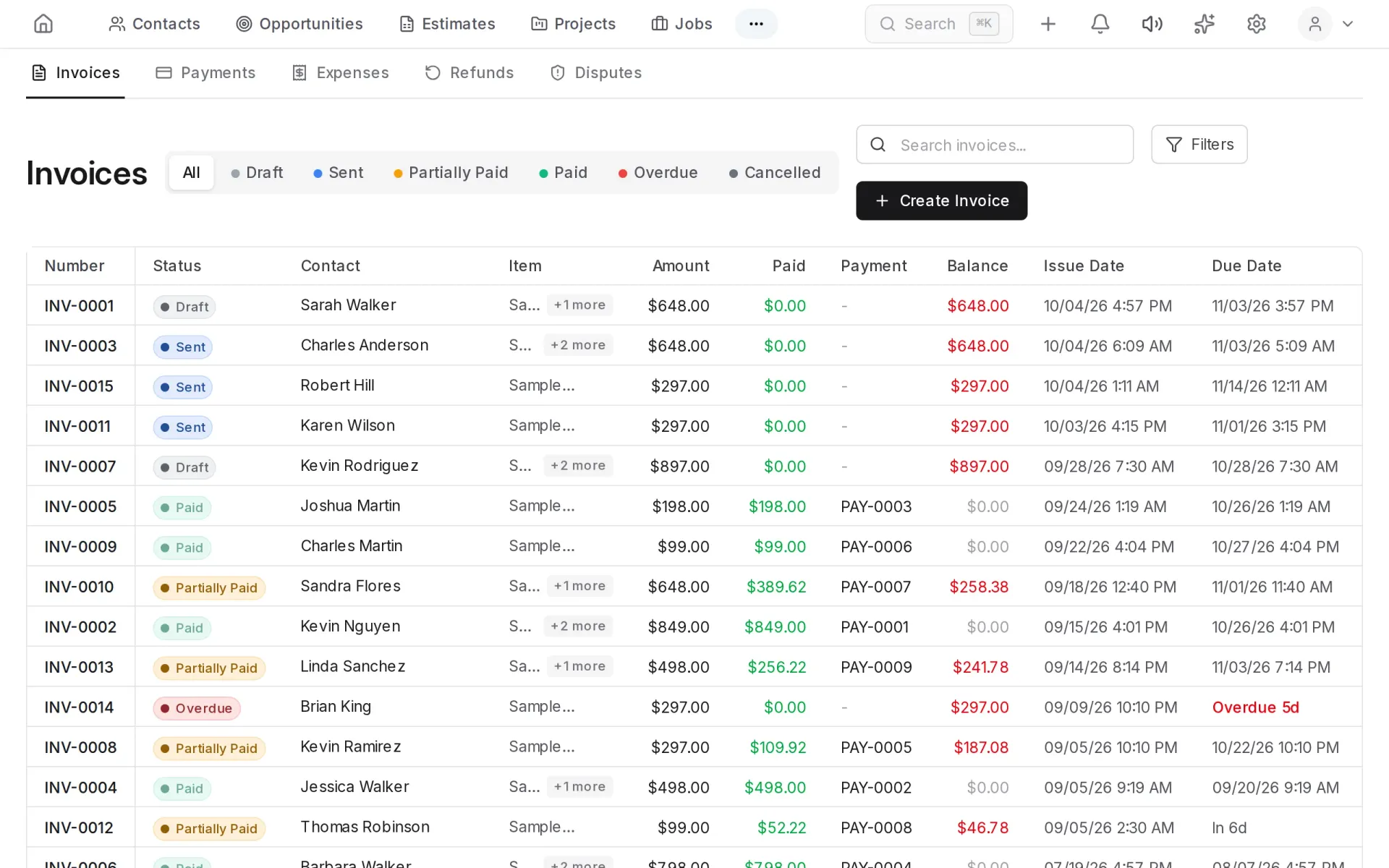
Overdue invoices are highlighted, with the number of days past due.
Creating an invoice
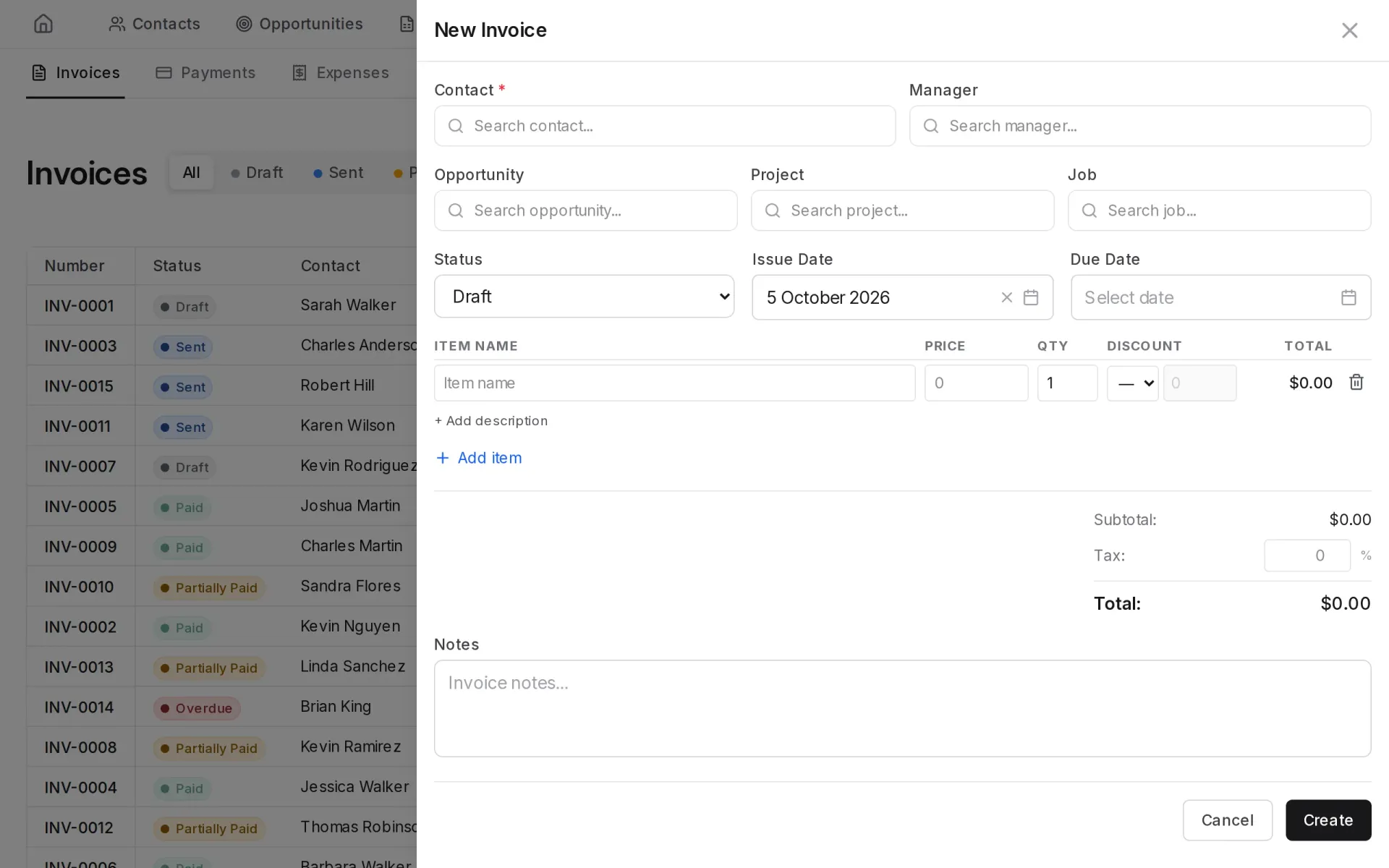
- Click Create Invoice.
- Choose a contact. If needed, link the invoice to an opportunity, project or job.
- Add line items: name, price, quantity. Items can be picked from the product catalog.
- Set the due date and tax, if it applies.
- Save.
Sending to the customer and online payment
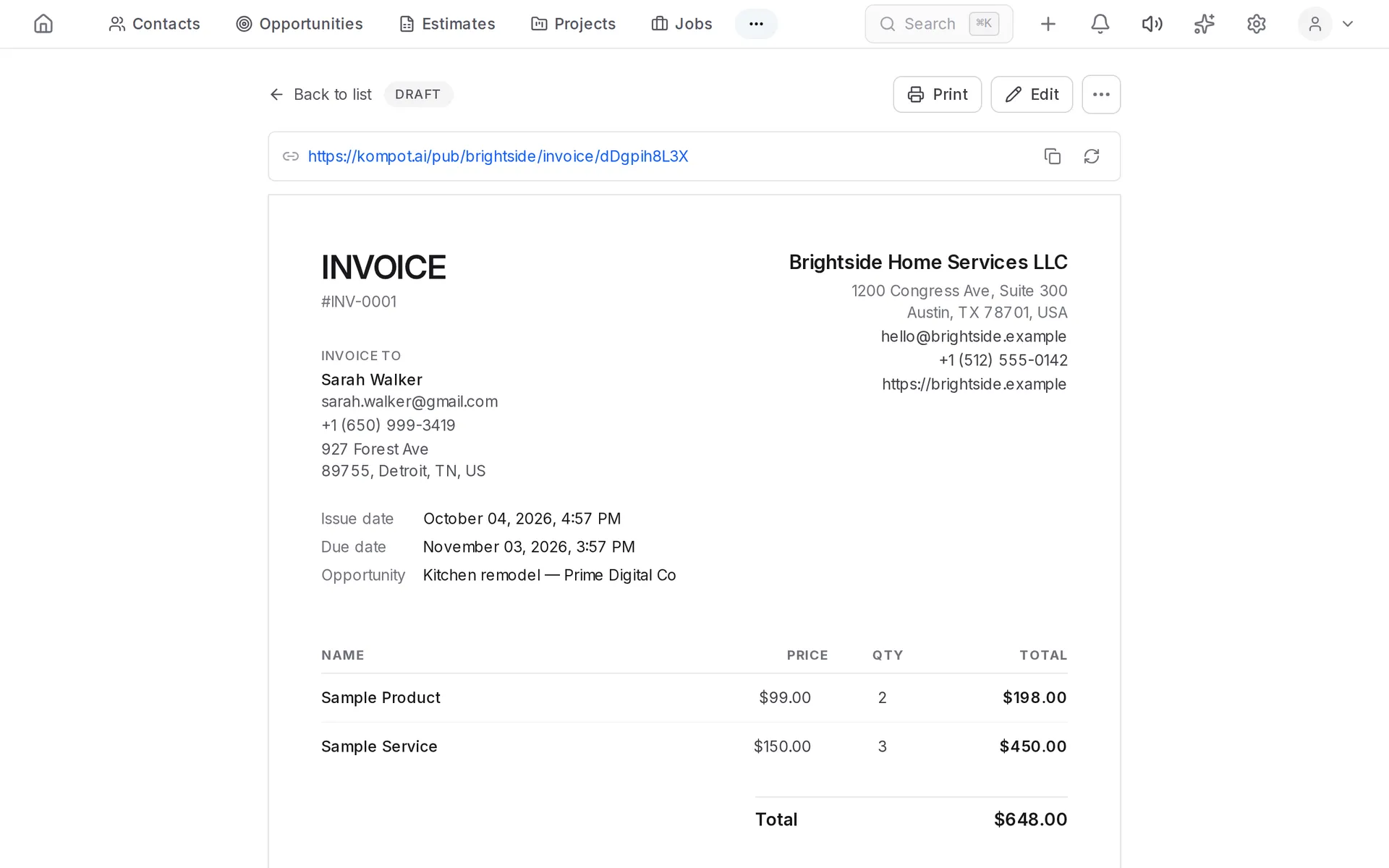
Every invoice has a public link. The customer opens the invoice with it, without signing up, and pays by card.
To take payments online, connect a payment provider in Settings → Payments. Stripe and PayPal are supported.
Subscription invoices
An invoice can repeat automatically: every day, week, month or year. A subscription is cancelled from the invoice page; cancelling stops future charges and does not affect past ones.
Estimates
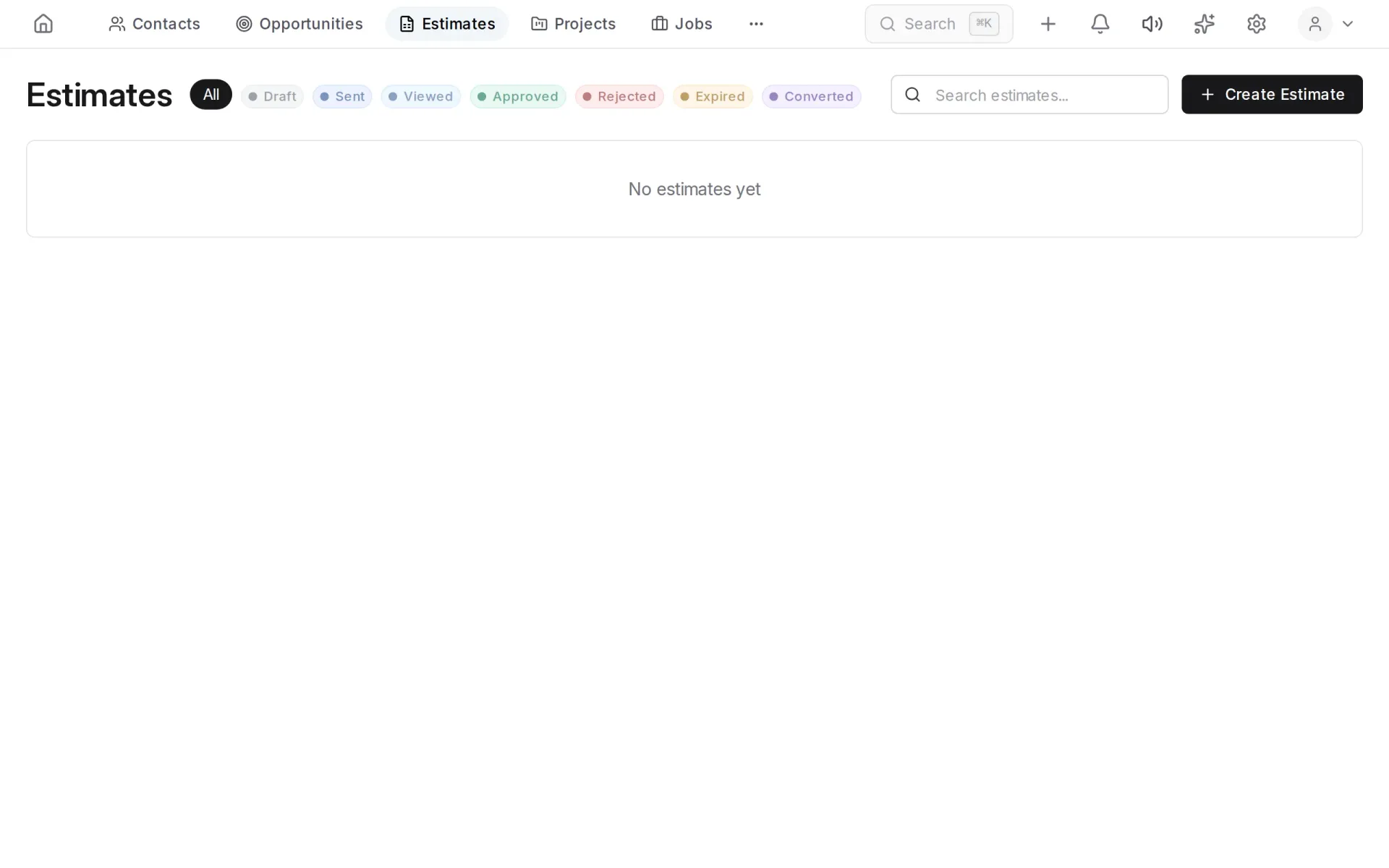
An estimate is a quote with line items and a total. The customer gets a link and can approve it; an approved estimate turns into an invoice in one step.
The section is switched on in Settings → Modules & Entities.
Payments
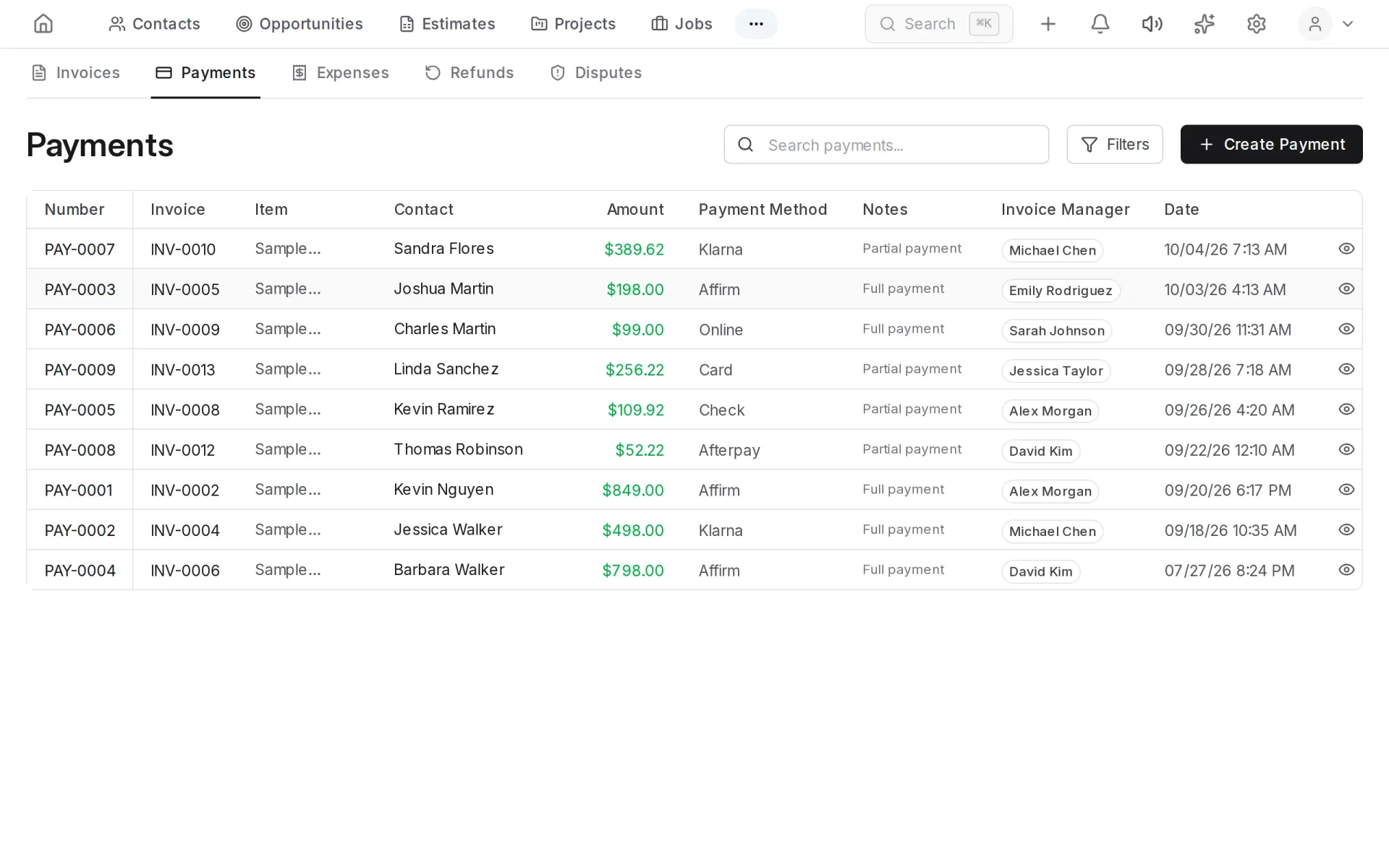
A payment is linked to an invoice. Online payments are recorded automatically; cash, checks and transfers are entered by hand in Finances → Payments. When payments reach the invoice total, the invoice becomes paid.
Expenses
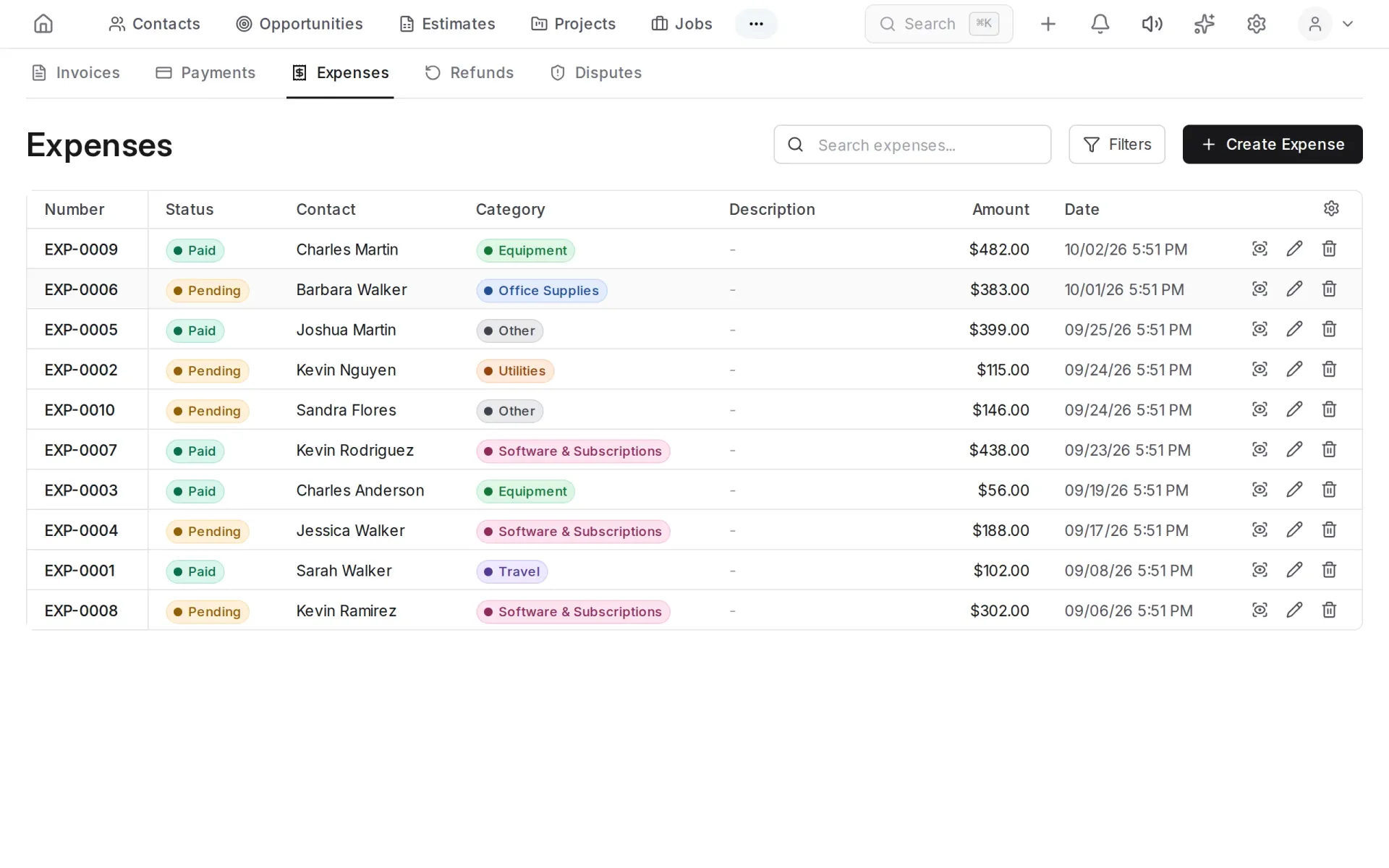
Company expenses are tracked in Finances → Expenses by category. A receipt can be attached to each.
An expense can be created from a photo of a receipt: the system reads the amount, date and vendor and fills the fields in.
Refunds
A refund is created from a payment and must be approved by a person with a separate permission. Until it is approved, no money is sent to the customer.
Currency
The workspace currency is set in Settings → General. When the currency changes, existing invoices, estimates and opportunities keep the currency they were created in.
Product catalog
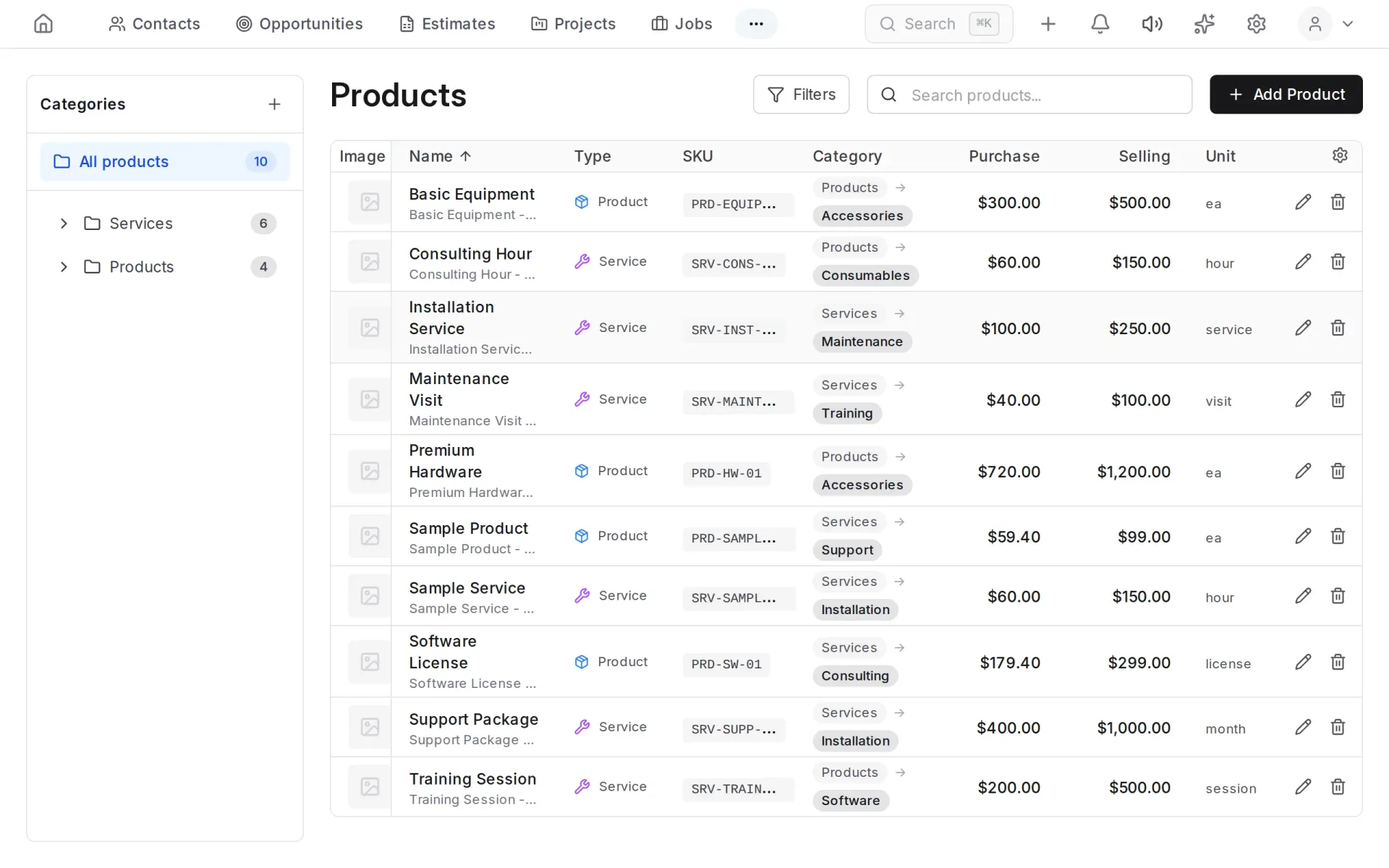
Goods and services with prices are kept in the Products section and are picked in estimates and invoices, so they are not typed every time.